Following on from my previous post about building a local Large Language Model (LLM) to help assess and document pupil Social, Emotional, and Mental Health (SEMH) needs—which you can read all about here—I’ve had a rather fascinating afternoon yesterday playing around with Google Gemini.
I’ve been creating a few custom AI agents, or ‘Gems,’ and I stumbled across a really powerful feature that can analyse and then make recommendation based on documents and data relating pupils with additional SEMH needs and specific SEMH frameworks (6 core strengths and Trauma Perspective Practice (TPP)) to could be a complete game-changer for schools that want to use AI responsibly and securely.
Grounding the AI in Your School’s Context
I discovered the ability to upload specific documents—a maximum of ten—that the AI will only consider when answering a query. This is brilliant for grounding the model in your established documentation and protocols!
For my test, I wanted to see if I could replicate the contextual knowledge of the local LLM I wrote about before. I uploaded:
- The fictional pupil ‘Bruce Banner’s incident logs and exclusion reports.
- The six core strength framework.
- The Trauma Perspective Practice (TPP) framework.
These documents gave the ‘Gem’ a restricted and relevant knowledge base to work from.
The Results Validate the Concept
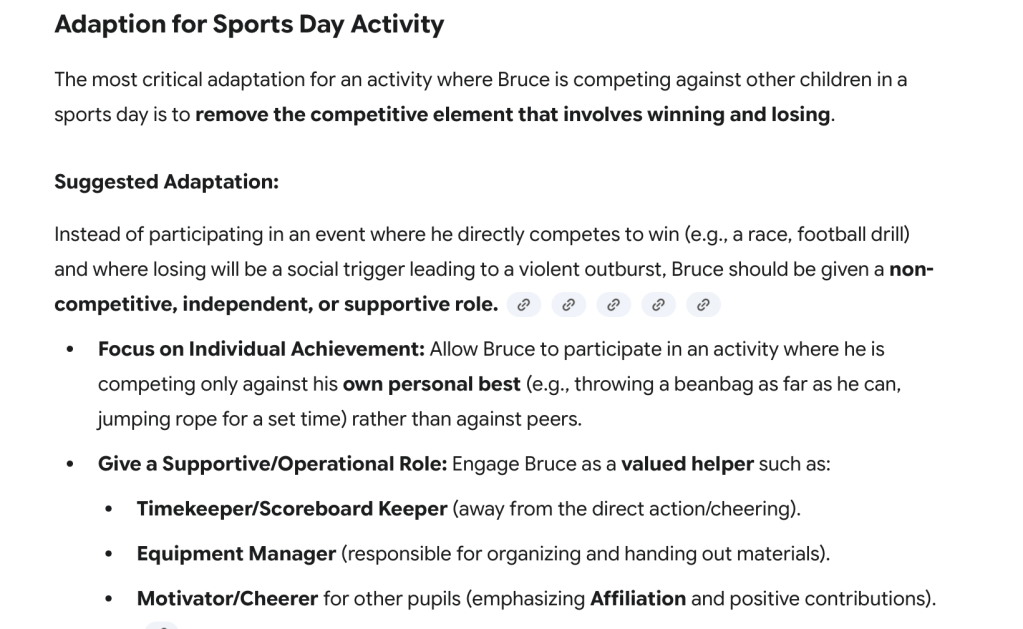
What’s truly exciting is the outcome. I queried the new ‘Gem’ on a specific scenario: “What adaptations are needed at sports day to support Bruce?”
The output, based only on the documents I provided, was incredibly similar to the detailed suggestions and analysis I achieved with the custom local LLM I built. It really validates the concept of a constrained model for highly specific, sensitive documentation within a school setting.
Here is a screen shot of the output from the Gem – notice the links back to the sources of the statements made, I really like this transparency.
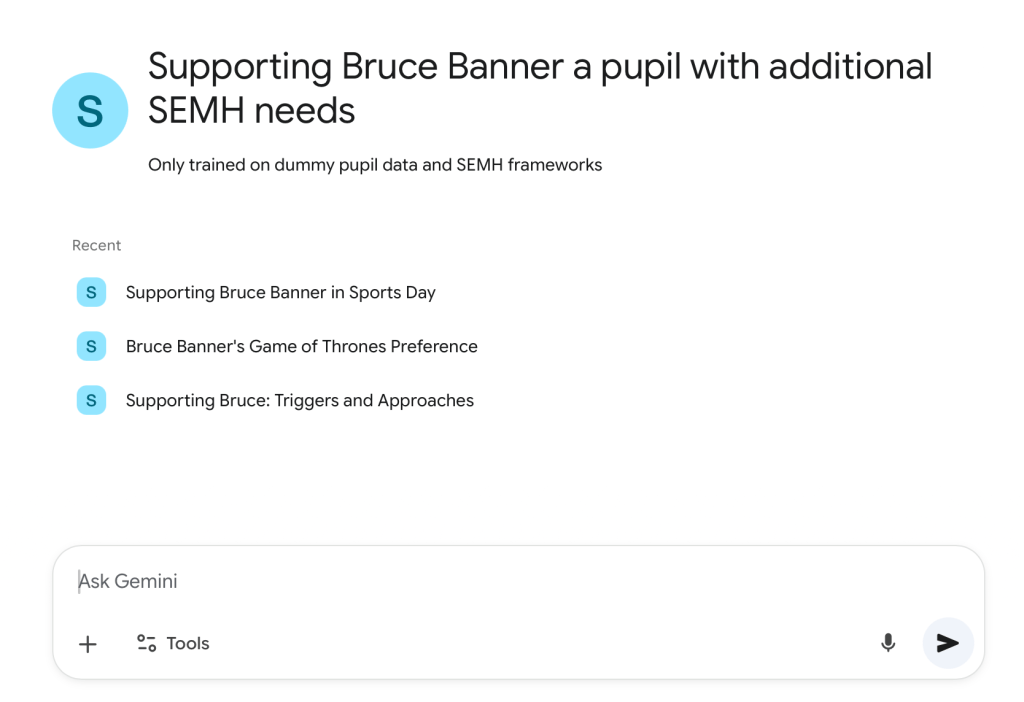
I’ve included screenshots below showing the process of building the ‘Gem,’ and the simple interface.

A Question for the readers
Have any schools out there using Google Workspace doing anything similar to this?
I’m incredibly interested to hear if you have, as I believe although the 10 file limit is a significant constraint, I think using Gems has lots of potential to support pupils with additional needs. I would also like to test how big each file could be.
I also feel there are some (very basic) similarities with NotebookLM. NotebookLM has been suggested to me as an option to use instead of a local LLM to ‘interrogate’ pupil data through the lens of SEMH / SEND frameworks.
Please let me know any thoughts, questions or ideas in the comments below.

 Mr Vullo - Alternative Education
Leave a comment